


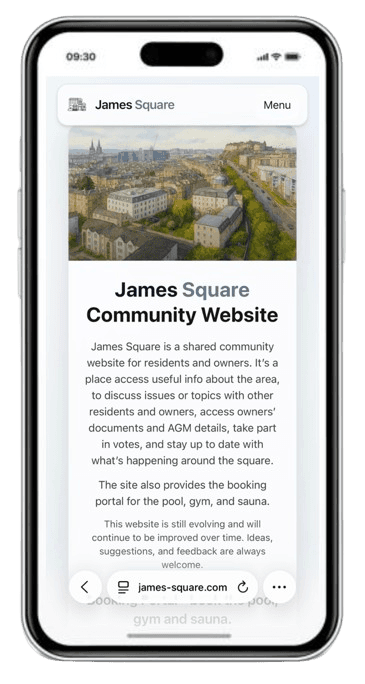
STEP 1
Open Safari
Open Safari and go to www.james-square.com, then tap the three dots in the bottom-right corner.
Swipe to continue
Follow the steps below to install James Square on your phone.
Open Safari and go to www.james-square.com, then tap the three dots in the bottom-right corner.
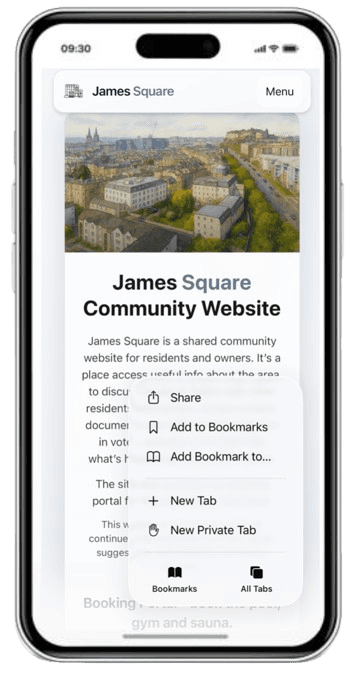
From the menu, tap Share to open the iOS sharing options.
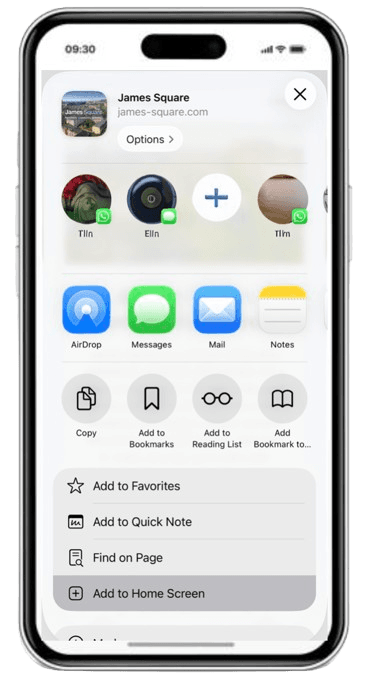
Scroll down and tap Add to Home Screen.
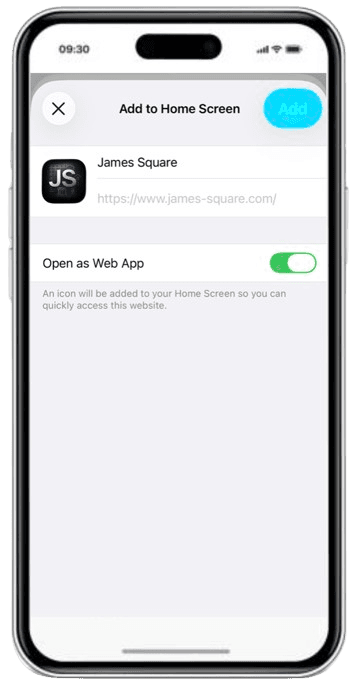
Check the details and make sure Open as Web App is enabled, then tap Add.
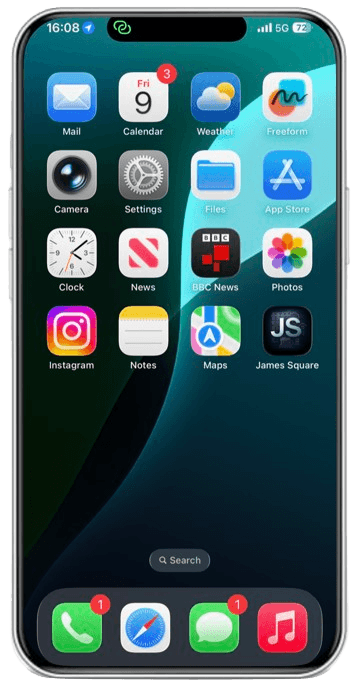
James Square will now appear on your home screen. Tap it to open like an app.